Please note that SSO and SCIM are available only for users on an Enterprise plan. If you'd like to know more, don't hesitate to request a quote from our Sales team.
Create a new application for WeTransfer
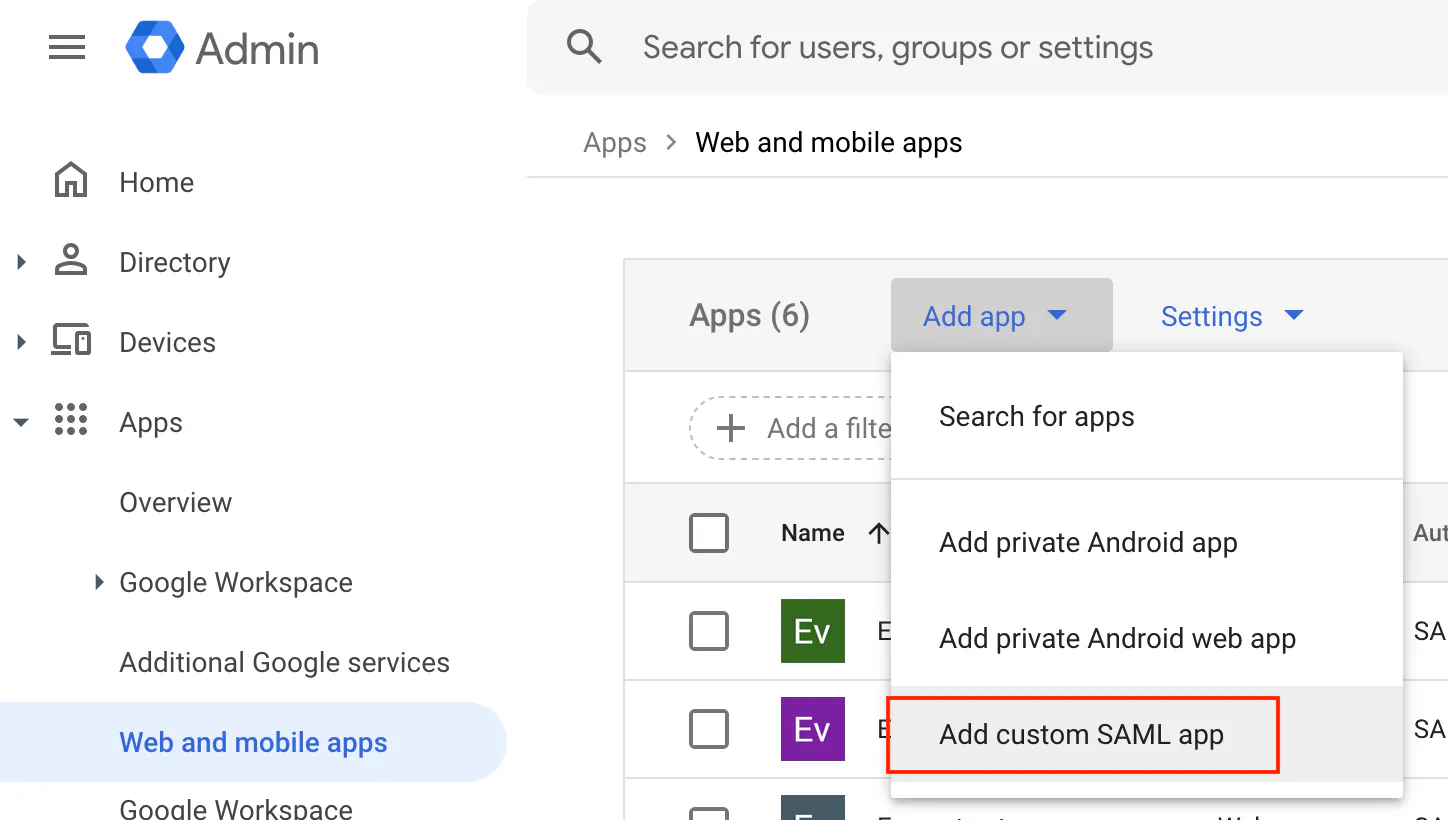
- Open Google Admin and proceed to Apps -> Web and mobile apps.
- From the menu on the top, press on Add app -> Add custom SAML app.
Configure the app
Steps 1 and 2
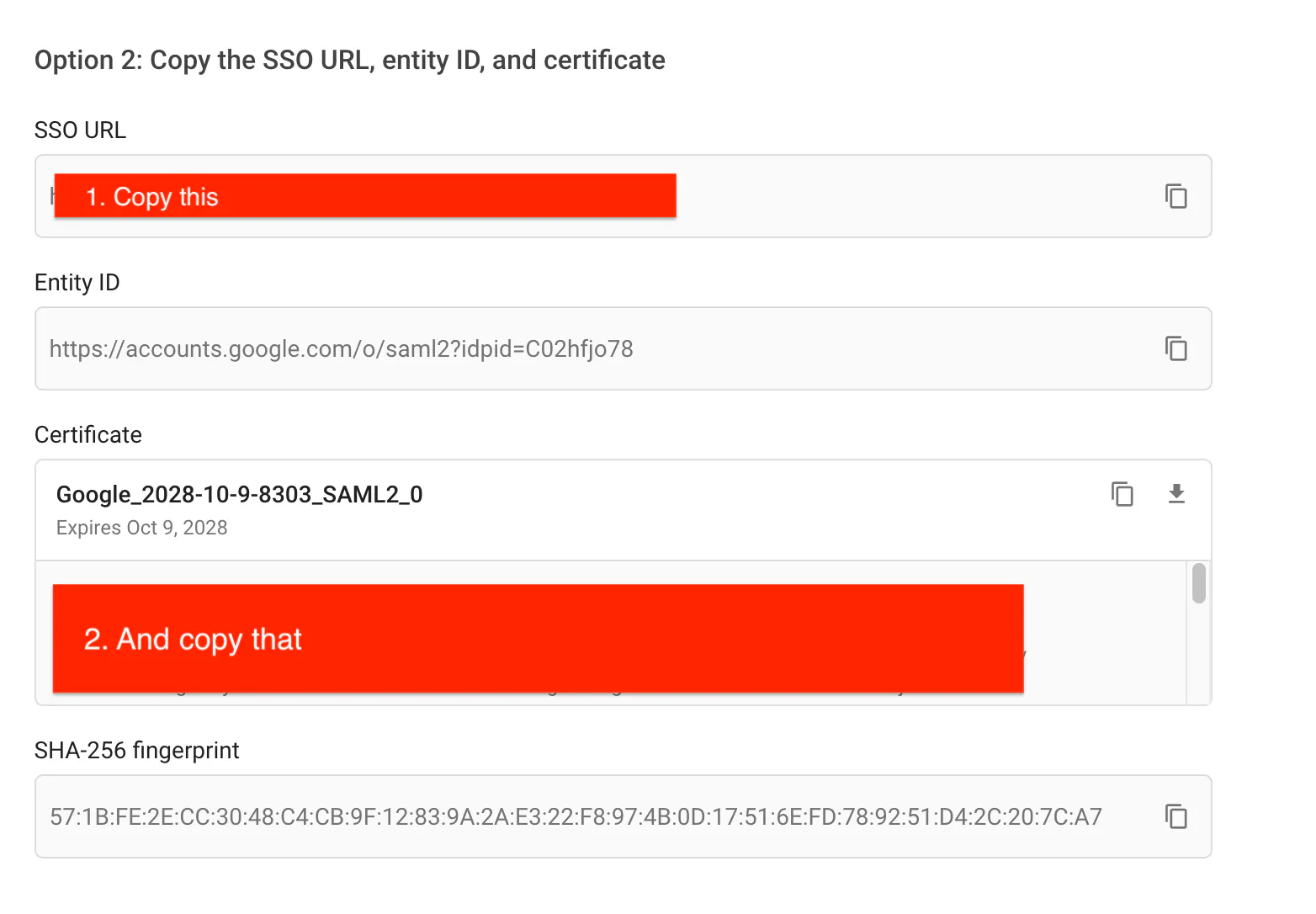
Fill out the App details in 'Step 1' and then copy the SSO URL and Certificate from 'Step 2':
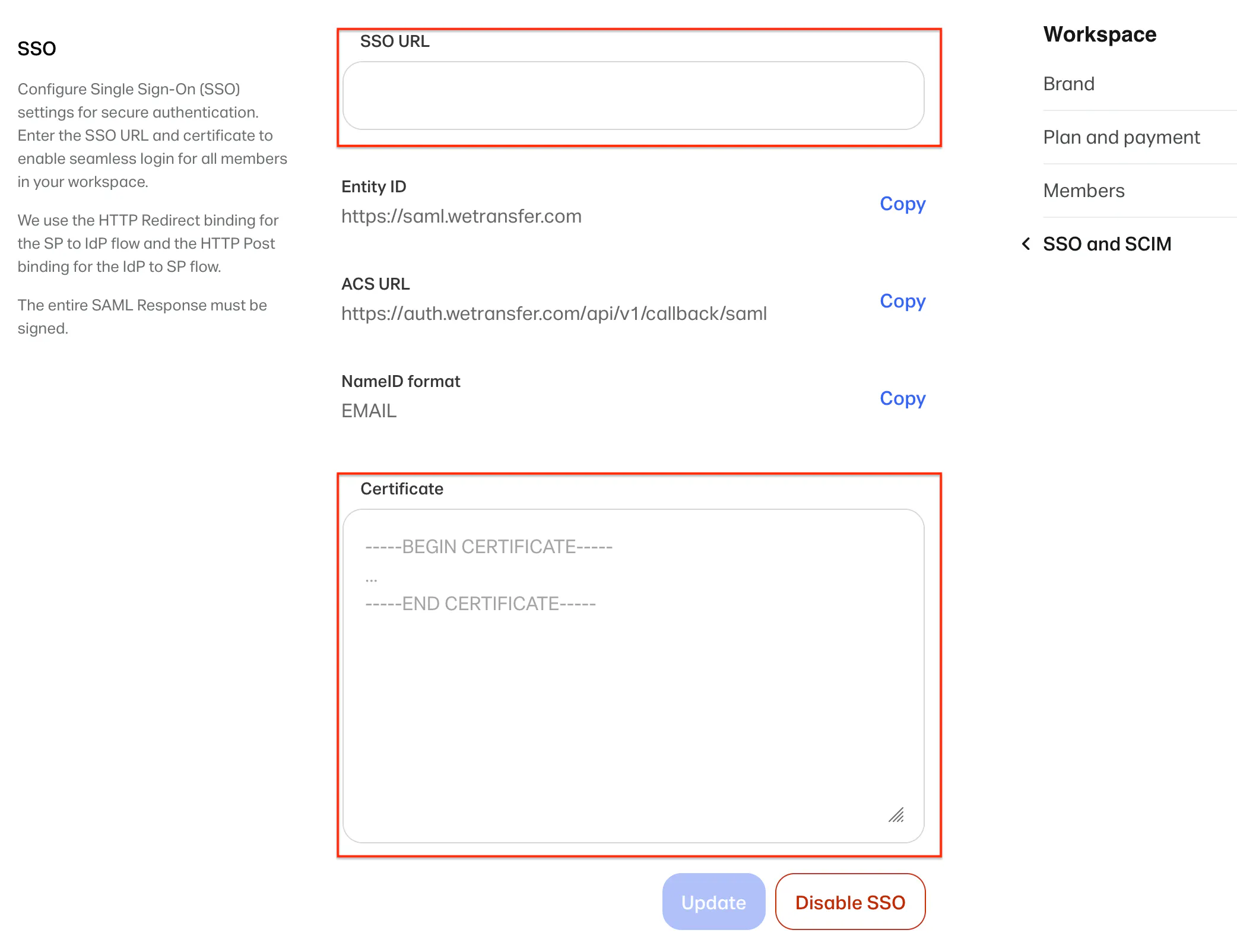
into the SSO configuration panel in WeTransfer:
Step 3
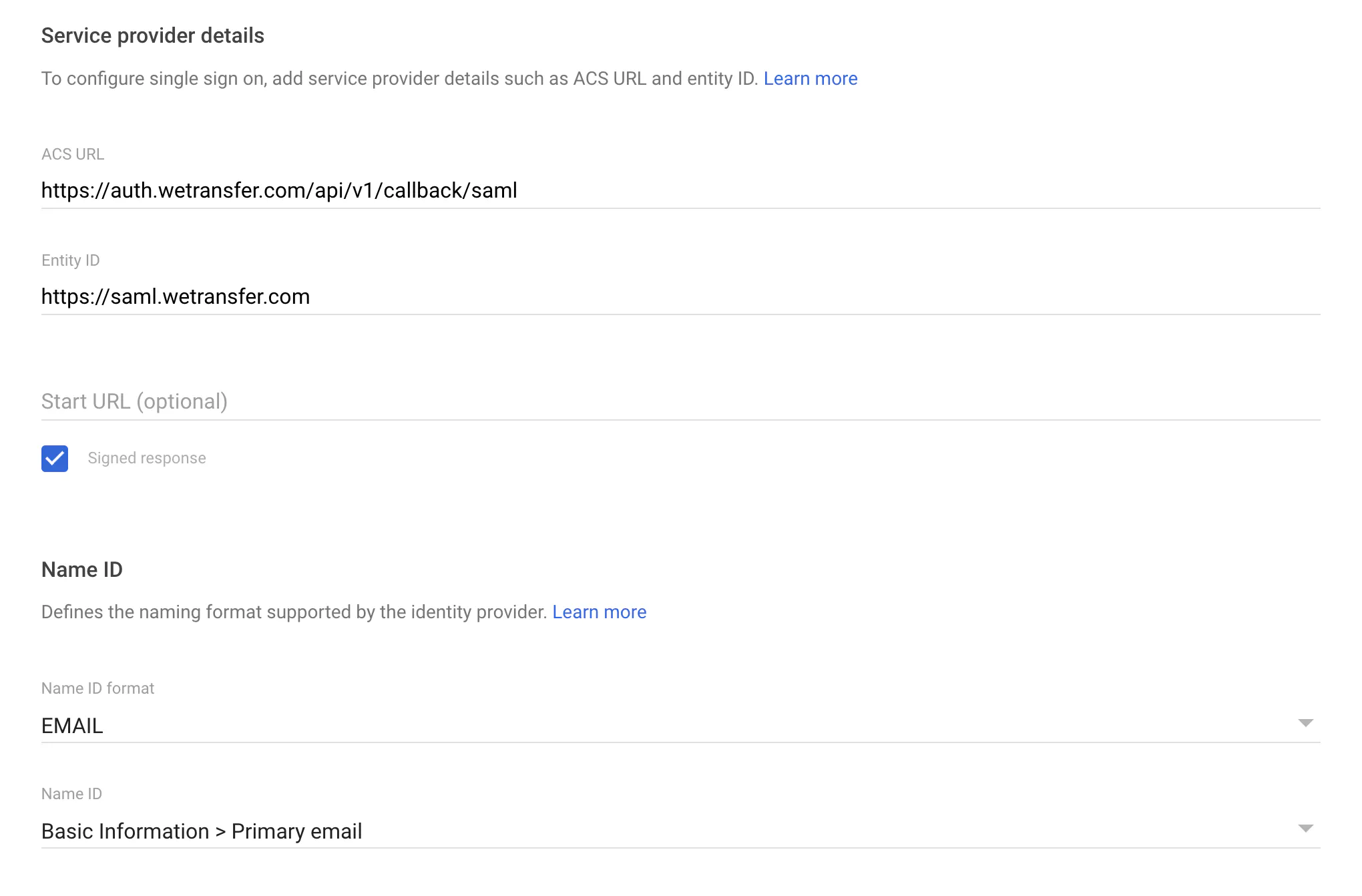
Next, copy Entity ID and ACS URL from the WeTransfer SSO configuration panel shown in the picture above into the corresponding fields in Google Admin. Check the 'Signed response' checkbox and select 'EMAIL' in the 'Name ID format' field. Lastly, make sure that the 'Name ID' field is set to 'Basic Information > Primary email'. The final configuration should look like in the image below:
Step 4
You can skip this step and press 'Finish' in the bottom-right corner to save the configuration.
Assign users to the new SAML app
By default, no users are assigned to the app and no authentication through Google is required. To change this, open the configuration page of the newly created app from the 'Web and mobile apps' menu and press on the 'View details' button in the 'User access' section:
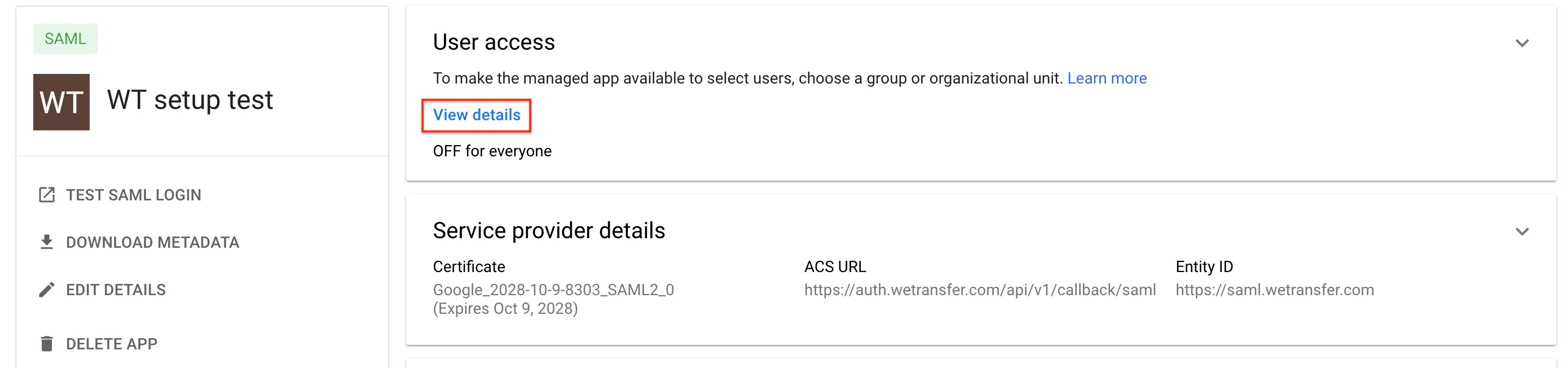
From there, you can configure each (or all) organizational unit to use the app by setting the 'Service status' to 'ON for everyone'.
Ask your WeTransfer contact to add and verify your domains
To enable SSO for your team, you must first coordinate with your WeTransfer contact to add and verify your organizational domains. Please note that only non-admin members with email addresses belonging to these verified domains (or their subdomains) will be authorized to log in via SSO. As part of this process, you may be required to perform a DNS verification using a TXT record. You can track the status of your domains in the 'Claimed domains' section, located directly below the 'SSO' section.
Test the configuration
Admins do not sign in via SSO
Please note that admins do not sign in via SSO. They keep signing in with their existing WeTransfer credentials, which guarantees that someone can still access the workspace if there is ever a problem with the SSO setup.
This means an admin cannot test SSO on their own account. To check that the configuration works, invite a second member to the workspace. Once SSO is set up, that member will be redirected to Google to log in.
That should be enough! From now on, all non-admin members of your team will be redirected to Google to log in. You can also test the configuration by pressing the 'Test SAML login' button in the app configuration page.