Please note that SSO and SCIM are available only for users on an Enterprise plan. SCIM is not enabled by default - if you do not see the SCIM section on your workspace's Security page, please contact our Sales team to have it enabled. If you are not yet on an Enterprise plan and would like to learn more, don't hesitate to request a quote to our Sales team.
Create a new enterprise application for WeTransfer
You can skip this step if you have already created one.
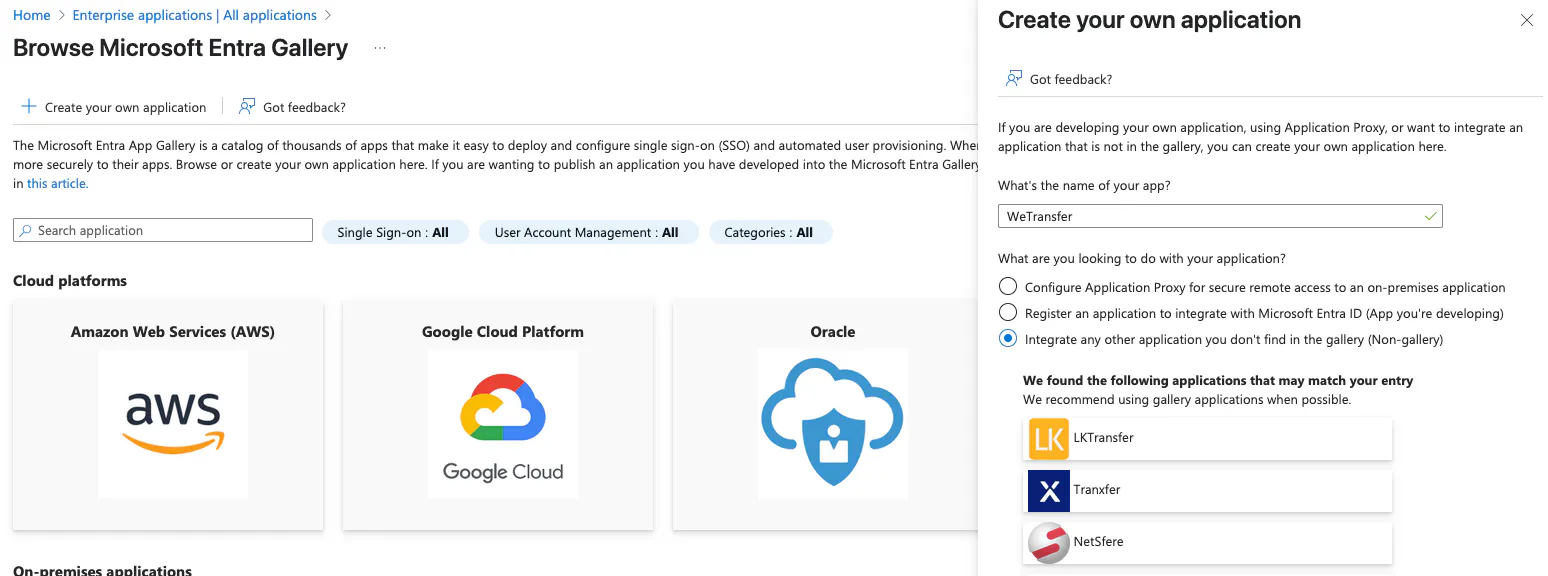
- Open Azure and proceed to Enterprise applications -> New application.
- Create your own application -> name the app and select 'Integrate any other application you don't find in the gallery (Non-gallery)' from the checkbox menu under 'What are you looking to do with your application?'.
Add new provisioning configuration
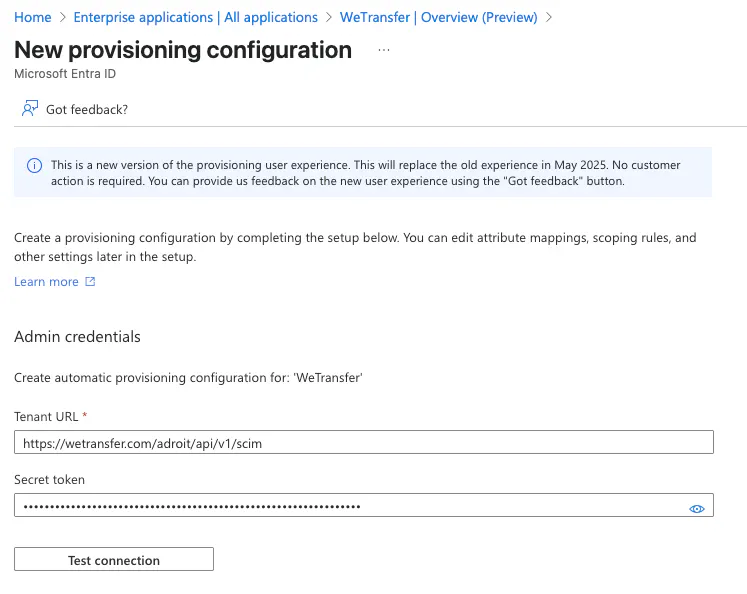
- Open your new application configuration page and select 'Provisioning' from the menu on the left.
- Under 'Get started with application provisioning' in the 'Create configuration' section press on the 'Connect your application' button.
- Fill out the admin credentials which you can find on the SSO and SCIM tab on the WeTransfer page. Note that these settings are only accessible by team administrators. From the SCIM section, copy the SCIM Endpoint Url as
Tenant URLand generate a newBearer tokento provide as theSecret token. Press 'Test connection' button to confirm the configuration. - You should see a popup in the top-right corner confirming the successful connection. Proceed by pressing the 'Create' button in the menu on the bottom of the page.
Configure WeTransfer roles
Inside a team, users are divided into members and administrators. Administrators have the option to manage the team which includes inviting and removing team members, and configuring SAML SSO and SCIM.
To support these roles in provisioning, follow the steps below:
- Go to App registrations -> your app that you just created.
- From the menu on the left select 'Manifest'.
- You will see the App Manifest in the JSON format. Add the two objects below defining the WeTransfer roles to the list under the '
appRoles' key:
{
  "allowedMemberTypes": [
    "User"
  ],
  "description": "WeTransfer member",
  "displayName": "Member",
  "id": "d43f4ebe-5bd2-4c3b-b71d-145edb4b428a",
  "isEnabled": true,
  "origin": "Application",
  "value": "Member"
},
{
  "allowedMemberTypes": [
    "User"
  ],
  "description": "WeTransfer administrator",
  "displayName": "Admin",
  "id": "cc55e9c4-1db8-47a5-b2ad-dd179da41b44",
  "isEnabled": true,
  "origin": "Application",
  "value": "Admin"
},
Modify the 'id' attributes of the objects if necessary. You are free to modify any attributes except for 'value' which has to strictly match 'Member' or 'Admin'.
- Save the configuration. The roles will now be available when provisioning users in the next section.
Configure attribute mapping
Before provisioning the users, you need to map user attributes like names, emails, etc. with the attributes required by WeTransfer.
- Open the 'Attribute mapping' section from the menu on the left side of the page.
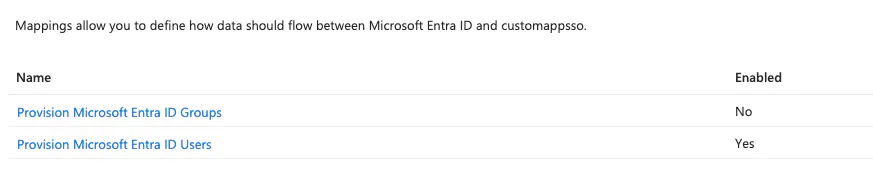
- By default, you should see enabled mappings for both Groups and Users. As we currently do not support Groups, click on that name and then from the menu switch 'Enabled' to No. Save changes and go back to the attribute mapping section. After a few moments, you should see the updated state as in the screenshot below:
- Next, click on 'Provision Microsoft Entra ID Users'. This configuration should be enabled with all three 'Target Object Actions' checked.
- From the 'Attribute Mappings' section on the bottom, check 'Show advanced options' and press on 'Edit attribute list for
customappsso'. - Go to the bottom of the list and define a new attribute for the WeTransfer role. Note that this will not work unless you completed the previous section called 'Configure WeTransfer roles'.
- Configure the new attribute with the following data. Leave checkboxes other than 'Required' unchecked.
Name | Type | Required |
|---|---|---|
urn:ietf:params:scim:schemas:extension:WeTransfer:2.0:User:role | String | Checked |
- Save the attribute list and go back to the attribute mapping menu.
- Add a new mapping for the WeTransfer role. Press on 'Add New Mapping' located under the table and fill out the form with following data:
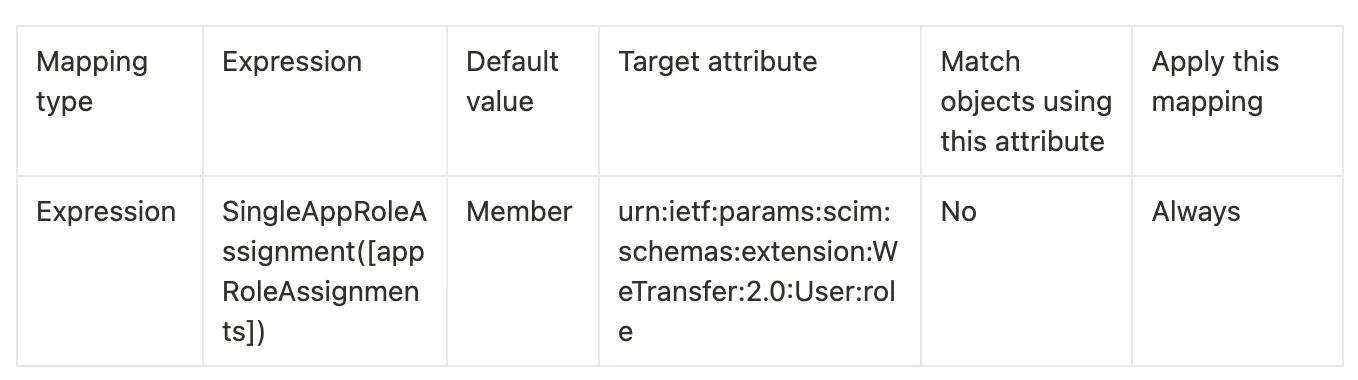
- Press 'Ok' to save the attribute.
- Lastly, delete the not used attributes from the 'Attribute Mappings table'. You should only leave the following '
customappsso Attributes':userName,active,name.givenName,name.familyName,externalId,urn:ietf:params:scim:schemas:extension:WeTransfer:2.0:User:role.
The table should now look like in the image below:

You can find the explanation of all modifiable attributes supported by WeTransfer below. This list includes additional attributes that you can configure on your own:
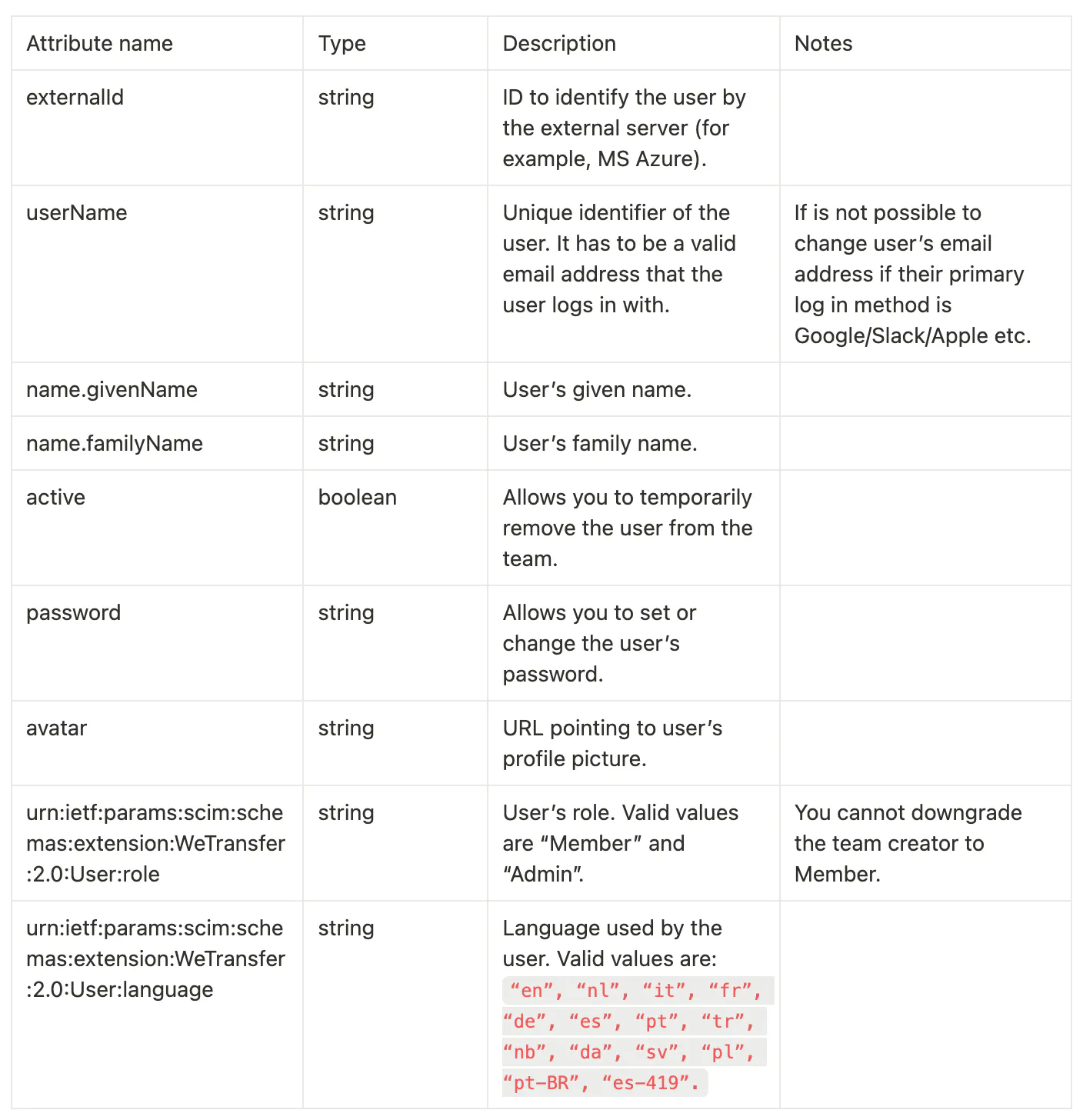
To find all attributes returned in responses from the SCIM server, check the Schemas endpoint returning all supported Schemas in the JSON format.
Provision users
Open the 'Users and groups' section from the menu on the left. Press on 'Add user/group' from the top menu and add users or groups of users that should be provisioned to WeTransfer.
Make sure to select a correct role under 'Select a role'. You should be able to select 'Admin' or 'Member' if you completed the 'Configure WeTransfer roles' section of this guide.
Start provisioning
That should be enough configuration to start the provisioning. From the menu of the left select 'Overview' and on the top press 'Start provisioning'. In most cases it will take some time before Azure starts provisioning users to WeTransfer.