


Your private shared photo album, ready in seconds
WeTransfer Albums give you a private, collaborative space to collect and view photos together. Create an album, share a link, and let everyone browse or contribute, no app required.
Start here
Create your first album

Collect and share group photos in one place
Sharing photos with a specific group should be simple, not a juggling act across email threads and messaging apps. WeTransfer Albums let you create a dedicated space for your photos, share it via link, QR code, or your device's native share sheet, and keep everything in one place. Anyone you share the link with can view the full collection straight from their browser, no account needed. Contributors who want to add their own photos just need a free WeTransfer account to upload. As the album owner, you stay in control: edit the title, set the cover image, adjust the expiry date, and remove any photo that does not belong.
What makes WeTransfer different
Our features are designed to minimize how much of your data we — or anyone else — can access, so you can keep what's yours, yours.
30M+ Transfers sent every month
4.8 App Store / Play Store average rating
12M+ Monthly active users
Everything you need
Create a shared album in seconds, invite anyone, and collect everyone's photos in full resolution — no hassle.

Shared group photo collection
One link brings everyone together. Anyone can add photos.

All the people you want
Invite as many or as few people as you want. Everyone contributes, everything stays in one place.
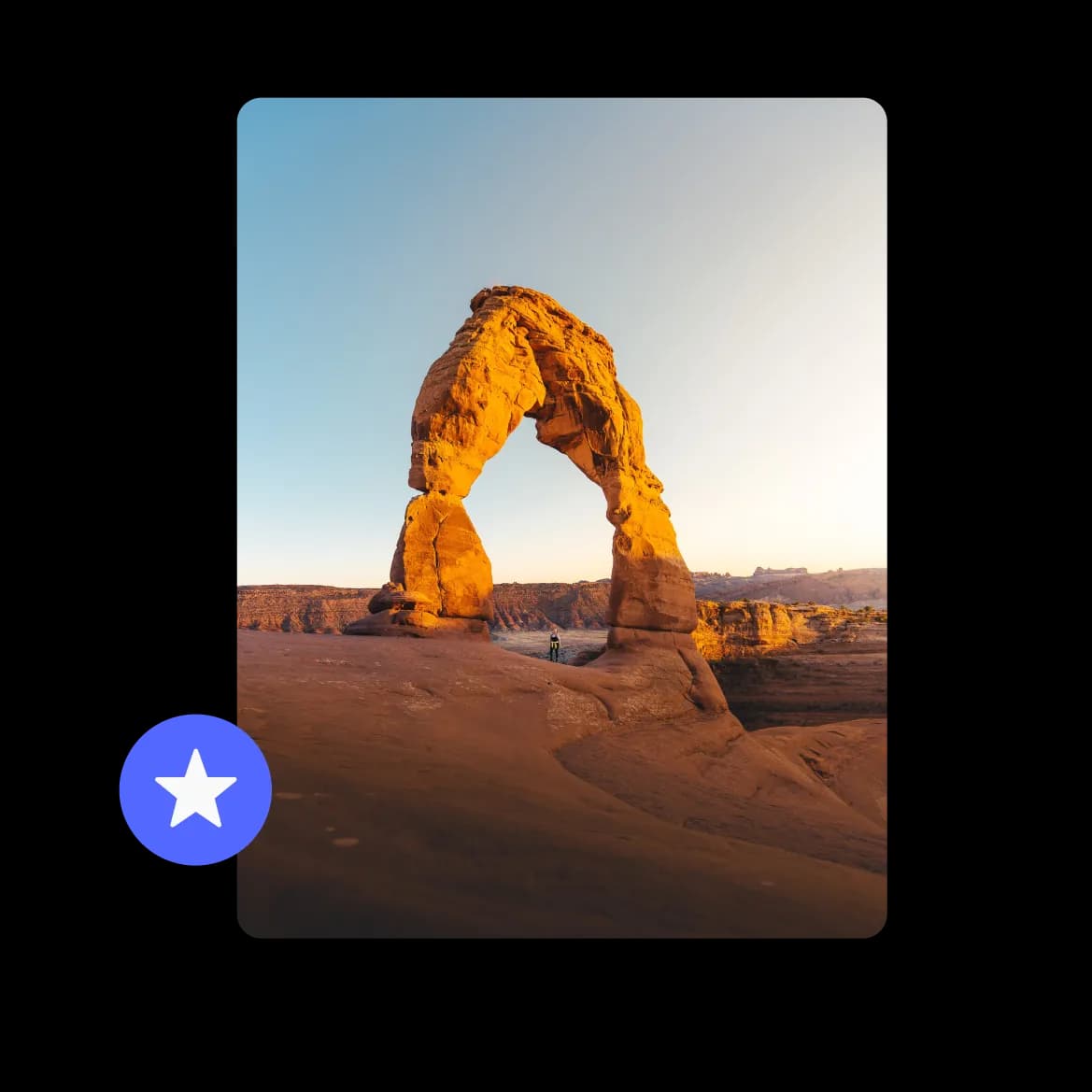
Full resolution photos, no compromise
Every photo lands exactly as it was taken. No compression, no quality loss.
FAQs
All your questions answered.
WeTransfer Albums are shared via a private link, which means only people you send it to can access the collection. The album is not publicly listed or searchable, so keeping it within your group is as simple as being selective about who you share the link with.
Both are possible. Anyone with the link can browse all the photos without an account. To contribute their own photos, a person needs a free WeTransfer account. Only one contributor can upload at a time, and each contributor can only delete photos they added themselves.
WeTransfer Albums support JPG, JPEG, PNG, GIF, WebP, AVIF, TIF, TIFF, HEIC, and HEIF files, covering the formats most phones and cameras produce by default. If you also want to include short clips alongside your photos, MP4, MOV, M4V, WebM, MKV, and 3GP video formats are supported too.
Yes. As the album owner, you can delete any photo in the collection at any time, regardless of who uploaded it. Keep in mind that deletions are permanent for everyone in the album, so there is no way to restore a removed photo once it is gone.
You set the expiry date when you create the album. Once the album expires, it is no longer accessible to viewers or contributors. If you need to keep a collection available longer, you can update the expiry date while you are still the album owner before it runs out.